Select Version of EA Desktop:
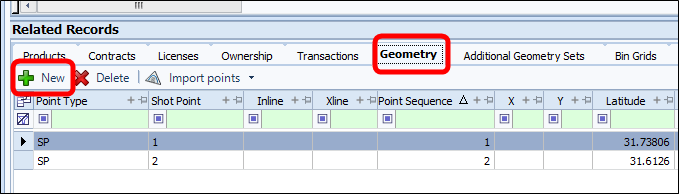
The Geometry tab of the Related Records in the Seismic module is for adding and viewing navigation.
For adding navigation, refer to the information for using Exploration ArchivesNavigation Loaderin Add seismic navigation .
For existing navigation, the detail in the Geometry tab includes the points in the original data set, as well as the latitude and longitude values for the map view.
To add new geometry for a seismic item manually:
-
Select the record in the Seismic Properties grid.
-
Click New to display a new row in the grid and enter the relevant information for each column.
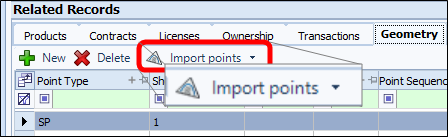
Alternatively, you can import values from an Excel® or CSV file by selecting Import Points on the tool bar.
-
Exploration Archives will automatically draw the shape on the map once the points are saved and the GCS is set.
-
Refer to Import points for geometry for details.
-
To add additional geometry sets refer to Add additional geometry sets.
The Geometry tab of the Related Records in the Seismic module is for adding and viewing navigation.
For adding navigation, refer to the information for using Exploration Archives Navigation Loaderin Add seismic navigation .
For existing navigation, the detail in the Geometry tab includes the points in the original data set, as well as the latitude and longitude values for the map view.
To add new geometry for a seismic item manually:
Select the record in the Seismic Properties grid.
Click New to display a new row in the grid and enter the relevant information for each column.
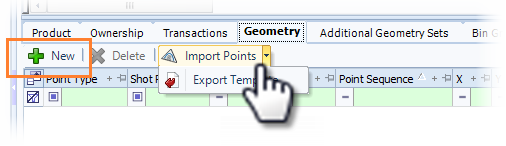
Alternatively, you can import values from an Excel® or CSV file by selecting Import Points on the tool bar.
Exploration Archives will automatically draw the shape on the map once the points are saved and the GCS is set.
Refer to Import points for geometry for details.
To add additional geometry sets refer to Add additional geometry sets.